
Guides
How to Merge Multiple PDF Files Into One Document
Jul 15, 20267 min readby Doxad Team
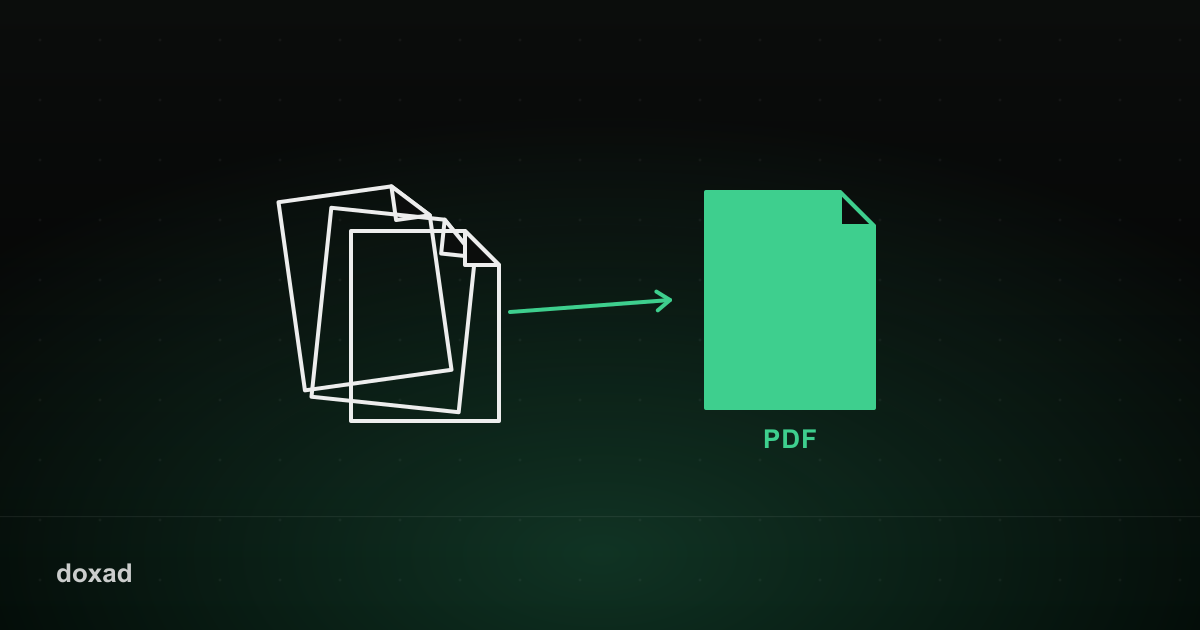
Merging PDFs combines two or more separate files into a single document, in whatever order you choose — the standard fix for anything that needs to arrive as one file instead of a scattered set of attachments.
When you need to merge PDFs
- Combining a cover letter, resume, and portfolio into one application file.
- Assembling scanned receipts into a single expense report.
- Putting together a contract with its signed signature page and supporting exhibits.
How to merge PDFs
- Open the PDF Merger.
- Upload all the PDF files you want to combine.
- Drag to reorder them into the sequence you want.
- Download the single merged PDF.
Tips for a clean merged document
- Check each source file's orientation before merging — a sideways page will stay sideways. Fix it beforehand with the Rotate PDF tool.
- If any file has pages you don't need, trim them first so you're not merging unnecessary content.
- Rename files clearly before uploading so it's easy to get the order right.
FAQ
Is there a limit to how many files I can merge?
You can merge multiple files in one session — for very large batches, it just takes a little longer to process.
Can I remove a page after merging, instead of starting over?
Yes — run the merged file through Delete PDF Pages to remove anything you don't need.
What if I need to split the file apart again later?
The PDF Splitter can break a merged document back into individual files or page ranges.