
How to Export PDF Pages as PNG Images
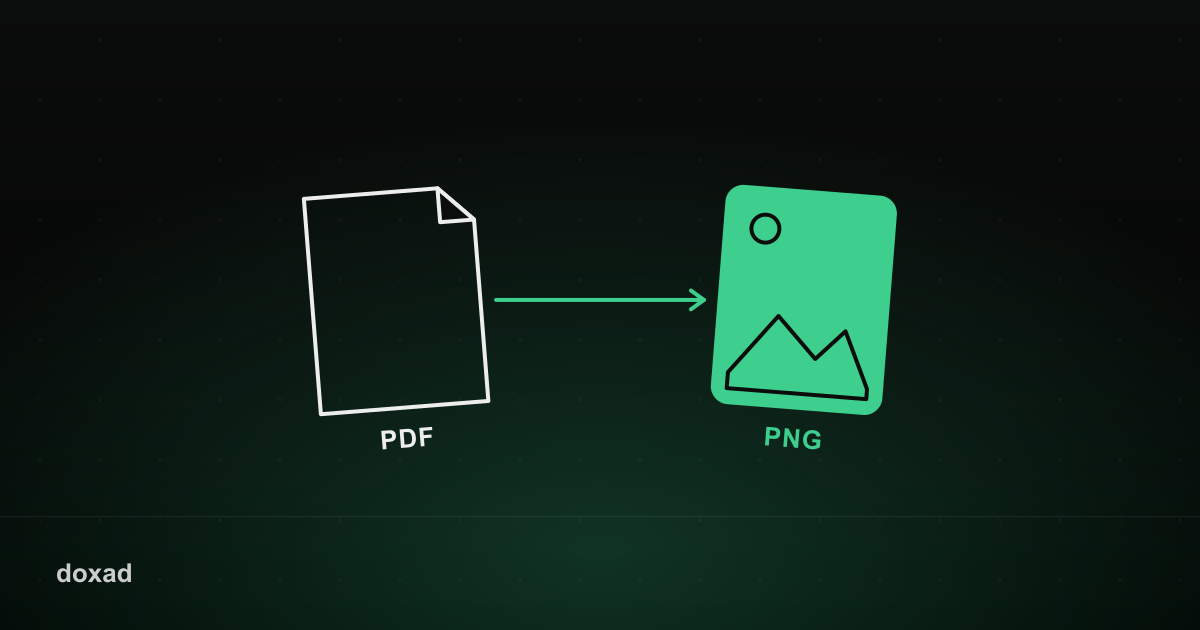
Exporting a PDF page as PNG instead of JPG keeps text and line art perfectly sharp, because PNG doesn't use the lossy compression that can soften fine detail. It's the better choice whenever a page contains diagrams, charts, or dense text rather than photos.
PNG vs. JPG for PDF pages
JPG compresses by discarding some visual information, which is barely noticeable in photos but shows up as fuzziness around sharp edges and small text. PNG is lossless — every pixel is preserved exactly. The tradeoff is file size: PNG files are typically larger than an equivalent JPG.
How to export PDF pages as PNG
- Open Doxad's PDF to PNG converter.
- Upload your PDF.
- Each page is rendered as a lossless PNG image.
- Download the images individually or all at once.
When to choose PNG over JPG
- The page is a diagram, chart, screenshot, or contains small text.
- You need to edit or annotate the image afterward without compounding compression artifacts.
- File size matters less than visual accuracy.
FAQ
Why is my PNG file bigger than expected?
That's normal — PNG's lossless compression produces larger files than JPG, especially for photo-heavy pages. If size is a concern, run the output through the Image Compressor.
Should I use this for photo pages instead of PDF to JPG?
For pages that are mostly photographs, the PDF to JPG converter will usually give you a smaller file with no visible quality difference.