
Guides
How to Convert Word to PDF Without Breaking Your Formatting
Jul 7, 20269 min readby Doxad Team
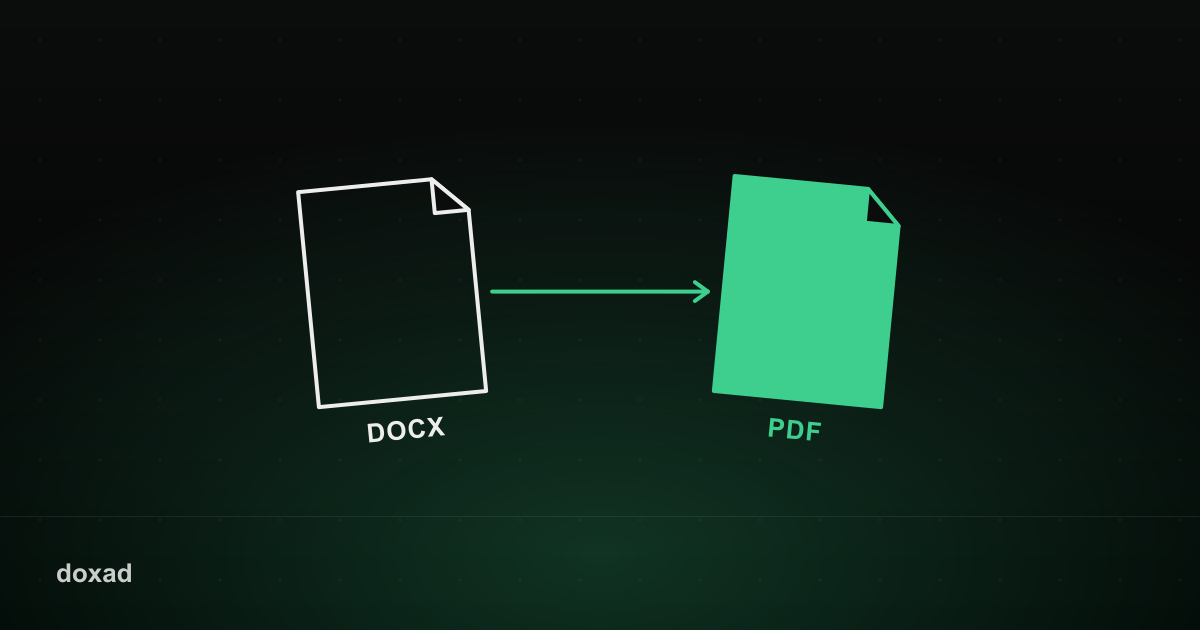
Converting Word to PDF locks in your exact formatting — fonts, spacing, and page breaks — so the document looks identical no matter what device or software opens it next. That's the whole point of a PDF: what you see is what everyone else sees.
Why convert to PDF at all
- A .docx file can look different depending on which fonts are installed on the reader's computer — a PDF avoids that entirely.
- PDFs are the standard format for contracts, resumes, and invoices because they can't be casually edited by the recipient.
- Most application forms, portals, and print shops only accept PDF uploads.
How to convert Word to PDF
- Open Doxad's Word to PDF converter.
- Upload your .docx or .doc file.
- The converter renders your document exactly as formatted and outputs a PDF.
- Download the file — it's ready to send, print, or upload.
Avoiding common formatting issues
- Embed any custom fonts in your Word document before converting, if your version of Word supports it — this keeps unusual fonts from being substituted.
- Check page breaks in Word first; what looks fine on your screen can shift once locked into fixed PDF pages.
- If your document has tracked changes or comments, resolve or hide them before converting — they can appear in the output otherwise.
FAQ
Will hyperlinks in my document still work?
Yes, links stay clickable in the converted PDF.
Can I combine multiple Word documents into one PDF?
Convert each one individually, then use the PDF Merger to combine them into a single file in the order you choose.
Does converting to PDF compress the file?
Not significantly on its own. If the PDF ends up too large — usually because of embedded images — run it through the Image Compressor workflow described in our guide on shrinking large PDFs.