
How to Convert PNG to PDF Without Losing Quality
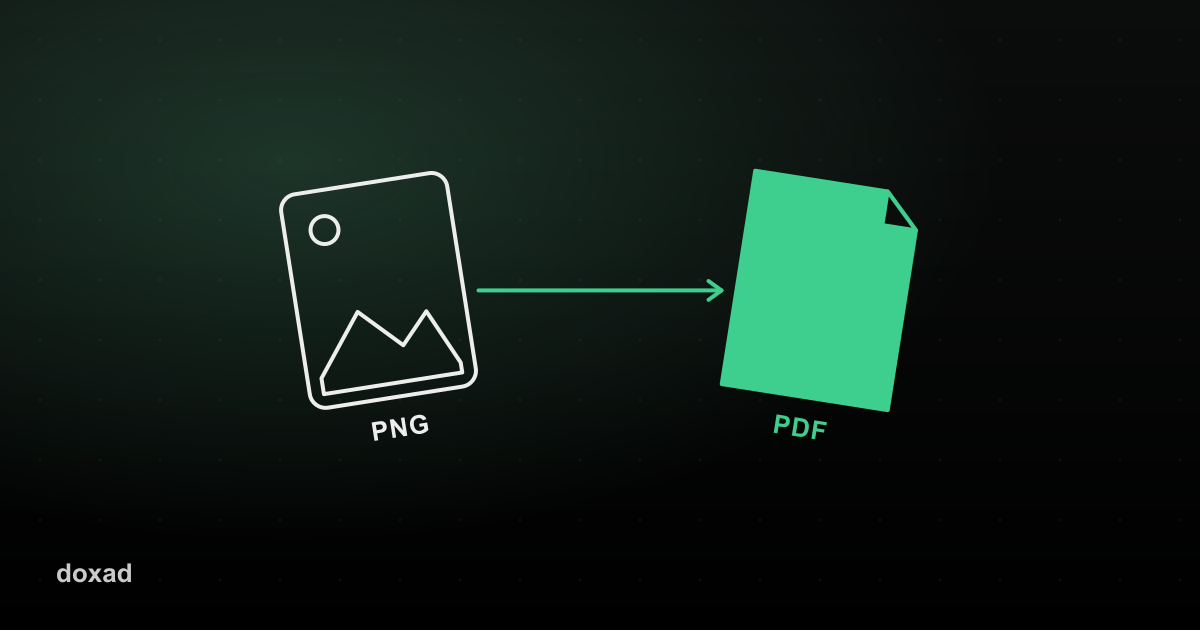
PNG images are lossless, which means they're often used for screenshots, diagrams, and graphics with sharp text or clean lines. When you convert PNG to PDF, the goal is to keep that same sharpness — no blurring, no compression artifacts around text or edges.
Why PNG needs different handling than JPG
JPG compression is designed for photos and can blur fine detail slightly to save space. PNG has no such compression loss, which is exactly why it's the standard format for screenshots and text-heavy graphics. A good PNG-to-PDF converter preserves that lossless quality instead of quietly re-encoding it as JPG in the process.
How to convert PNG to PDF
- Open Doxad's PNG to PDF converter.
- Upload your PNG file or files.
- Arrange multiple images in the order you want them to appear as pages.
- Download the PDF — each image keeps its original sharpness.
Common use cases
- Turning a set of screenshots into a single PDF report or bug report.
- Converting a diagram or chart exported as PNG into a shareable document.
- Combining transparent-background PNG graphics into a print-ready PDF.
FAQ
What happens to transparent backgrounds?
Transparent areas are filled with white in the final PDF, since PDF pages don't support transparency the way PNG does.
Can I add more images to an existing PDF later?
Yes — convert the new images separately, then use the PDF Merger to combine the new pages with your original PDF.
Is this different from the JPG to PDF tool?
Only in the source format. If your files are JPG instead, use the JPG to PDF converter — the rest of the process is the same.