
How to Convert a PDF to Word Without Losing Formatting
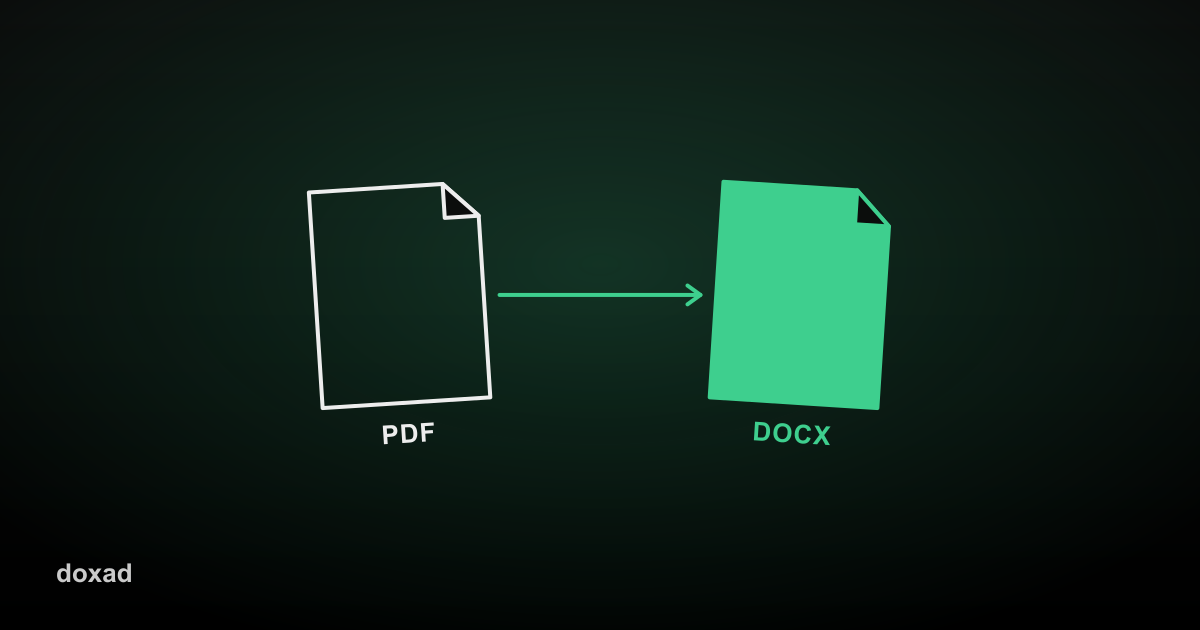
The fastest way to convert a PDF to Word without losing formatting is to use a converter that reads the PDF's actual text layout — fonts, tables, and spacing — instead of just dumping the text into a blank page. That's the difference between a Word file you can immediately edit and one you have to rebuild from scratch.
Why PDF-to-Word conversions usually break
Most formatting problems happen because a PDF isn't really a document — it's a fixed grid of text and image positions. A converter has to guess how that grid maps back to paragraphs, tables, and headings in Word's format. Cheap or overly simple tools guess badly: columns collapse into one, tables turn into loose text, and fonts get swapped for whatever's closest on the system doing the converting.
How to convert a PDF to Word step by step
- Open Doxad's PDF to Word converter — no account needed.
- Upload your PDF (up to 15MB).
- Wait a few seconds while the layout, fonts, and tables are rebuilt.
- Download the .docx file and open it directly in Word, Google Docs, or Pages.
For text-based PDFs — the kind exported from Word, Google Docs, or a website — this preserves headings, bullet points, and most table structures automatically. For scanned documents, the process is a little different; see our guide on converting a scanned PDF to Word with OCR.
Tips for a cleaner result
- If the source PDF used an unusual font, expect Word to substitute the closest match — this is a font-licensing limitation, not a bug in the converter.
- Multi-column layouts (like newsletters or academic papers) convert best when each column has clear spacing in the original PDF.
- Complex tables with merged cells sometimes need minor manual cleanup after conversion — check them before sending the file onward.
FAQ
Will my images stay in the same place?
Yes — images are extracted and placed at their original position in the page, not appended to the end of the document.
Is there a file size limit?
Doxad's converter handles PDFs up to 15MB, which covers the vast majority of contracts, reports, and resumes.
Do I need to install anything?
No. The whole process runs at doxad.cloud/pdf-to-word with no sign-up, no browser extension, and no software to install.