
How to Turn a PDF Into an Editable PowerPoint Presentation
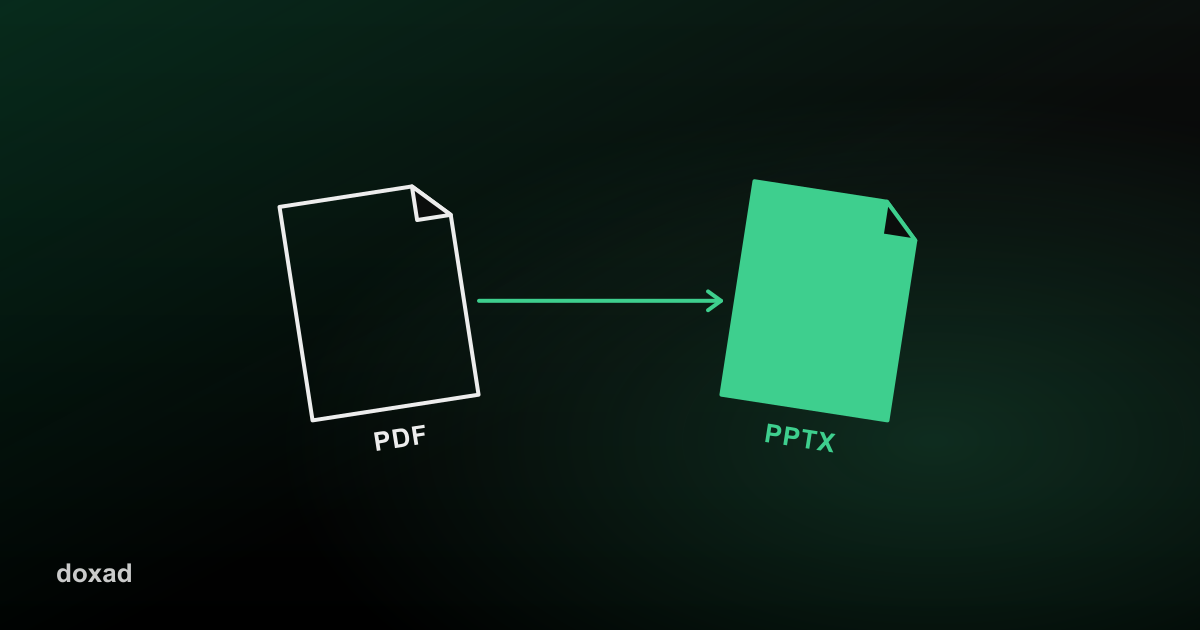
If someone sends you a deck as a PDF and you need to actually edit it — change a number, swap a logo, reorder slides — the fastest fix is converting it straight to PowerPoint, with each PDF page becoming its own editable slide.
When you'd need this
This comes up more than you'd think: a colleague exports a deck to PDF before sending it and you no longer have the original .pptx, a client shares a proposal as a PDF and you need to reuse the slides, or you've inherited an old presentation where the source file is long gone.
How to convert a PDF to PowerPoint
- Go to Doxad's PDF to PowerPoint converter.
- Upload the PDF — each page becomes one slide.
- Wait for the conversion to finish; text, images, and layout are mapped onto editable slide objects.
- Download the .pptx file and open it in PowerPoint, Google Slides, or Keynote.
What to expect
Text and images typically convert cleanly and become independently movable objects, so you can edit them like a normal slide. Complex animations or transitions from the original deck won't carry over, since a PDF doesn't preserve that information in the first place — only the static, final look of each slide does.
FAQ
Will fonts match the original deck?
If the font is common (Arial, Calibri, Helvetica, etc.) it usually matches. Less common or licensed fonts get substituted with the closest available match.
Can I convert just a few pages, not the whole PDF?
If you only need specific pages, trim the PDF first with the PDF Splitter or the Delete PDF Pages tool, then convert the smaller file.
Is there a cost?
No — it's free, with no sign-up and no watermark on the output file.