
How to Convert a PDF to JPG Images
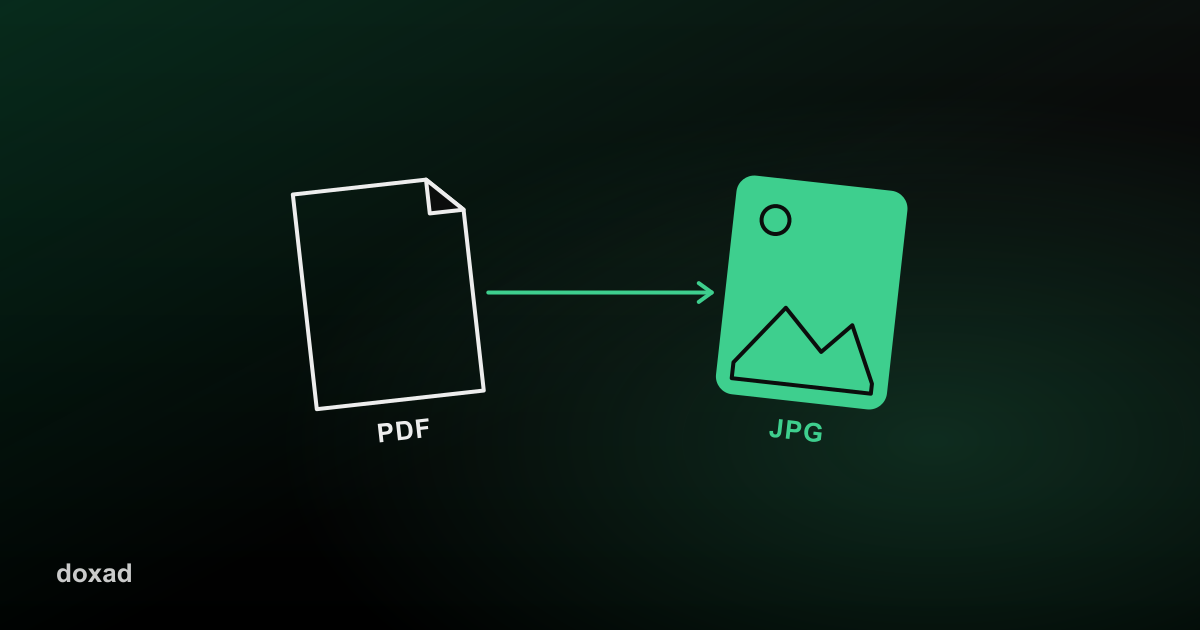
Converting a PDF to JPG turns each page into a standalone image file — useful when you need to drop a page into a slide deck, a social media post, or anywhere that expects an image, not a document.
Why you'd convert a PDF page to an image
- Embedding a PDF page into a presentation or webpage, where only image formats are supported.
- Sharing a single page on social media or in a chat, without sending the whole document.
- Creating a quick thumbnail or preview of a document's contents.
How to convert PDF to JPG
- Open Doxad's PDF to JPG tool.
- Upload your PDF file.
- Each page is rendered and exported as a separate JPG image.
- Download the image, or all of them, to your device.
A note on quality
JPG uses lossy compression, which is fine for pages with photos or mixed content but can slightly soften fine text at small sizes. If your PDF page is mostly sharp text or line art and you need maximum clarity, export as PNG instead — see our guide on exporting PDF pages as PNG images.
FAQ
Does this convert the whole PDF or one page at a time?
The whole PDF is processed at once — every page is exported as its own JPG image.
Can I go back the other way, from JPG to PDF?
Yes — the JPG to PDF converter does exactly that, bundling images back into a single document.
What if I only need one page from a large PDF?
Trim the file first with Delete PDF Pages so you're only converting the page you actually need.