
Guides
How to Convert JPG to PDF From Your Phone or Computer
Jul 8, 20268 min readby Doxad Team
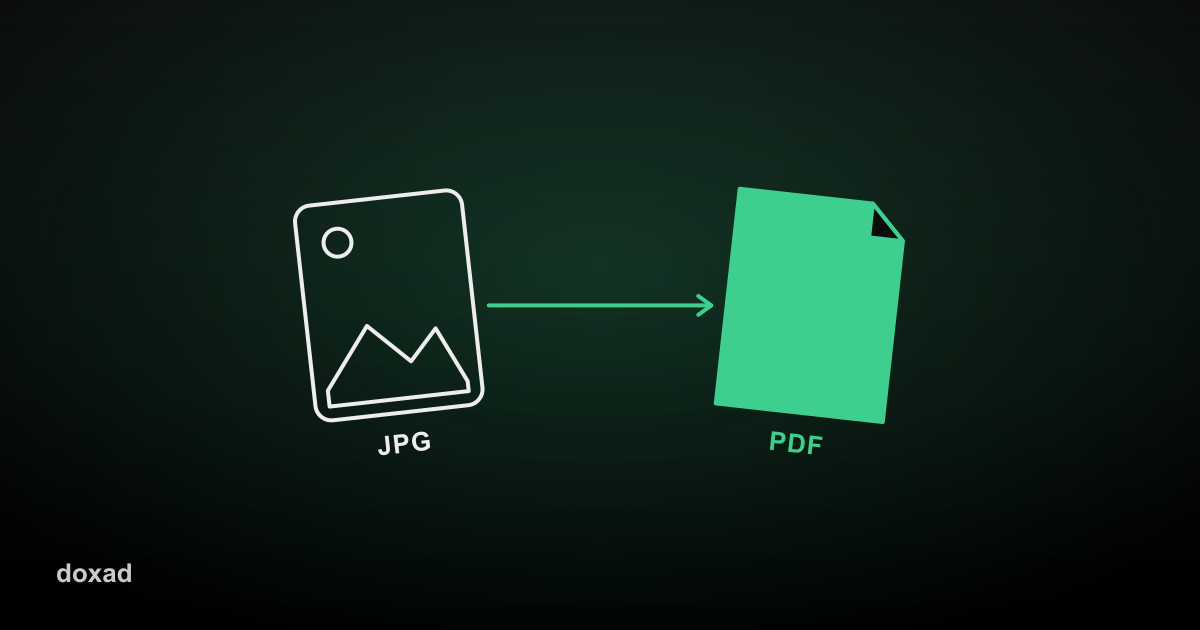
Converting JPG images to PDF bundles your photos — a receipt, a signed page, a whiteboard shot — into a single document you can email, print, or upload, instead of sending five separate image attachments.
Why people convert JPG to PDF
- Job and school applications almost always ask for a single PDF, not a folder of images.
- A multi-page PDF keeps photos in a fixed, print-ready order — a batch of JPGs doesn't.
- PDFs open consistently across devices, while some image viewers render JPGs differently.
How to convert JPG to PDF
- Open Doxad's JPG to PDF tool on your phone or computer — no app to install.
- Upload one or more JPG images.
- Reorder them if needed — each image becomes one page, in the order you set.
- Download the finished PDF.
Getting a clean result
- Crop out background clutter before uploading — the tool places the full image on the page as-is.
- For scanned documents (like a signed form), take the photo straight-on in good light to avoid a skewed or shadowed page.
- If your photos are very large files, expect a larger PDF — see our guide on shrinking oversized PDFs if size becomes an issue.
FAQ
Can I mix JPG and PNG images in one PDF?
This tool is built specifically for JPG. If your images are PNG, use the PNG to PDF converter instead — the workflow is identical.
Is there a limit to how many photos I can combine?
You can upload multiple images in one go; very large batches will simply take a few seconds longer to process.
Will image quality be reduced?
No — images are placed into the PDF at their original resolution, not recompressed.