
How to Compress an Image Without Losing Quality
You can usually shrink a photo's file size by 50–80% before most people notice any quality loss — the trick is compressing smartly instead of just cranking a single 'quality' slider down blindly.
Why image size balloons in the first place
Modern phone cameras capture far more detail than most uses need — a photo destined for a website, email, or document rarely needs the full resolution and bitrate a camera captures. Compression removes the extra data your eyes can't actually distinguish at normal viewing size, without touching what you'd notice.
How to compress an image
- Open the Image Compressor.
- Upload your image — JPG, PNG, or WebP.
- The tool reduces file size while keeping visual quality as close to the original as possible.
- Download the smaller file and compare it side by side with the original if you're unsure.
Tips for the best result
- Compress after you finish editing an image, not before — recompressing an already-compressed file repeatedly degrades it faster.
- For images with fine text or sharp lines, check the result at 100% zoom before using it somewhere permanent.
- If you need the image inside a document rather than as a standalone file, compress first, then convert — a smaller image means a smaller final PDF.
FAQ
How much smaller will my file get?
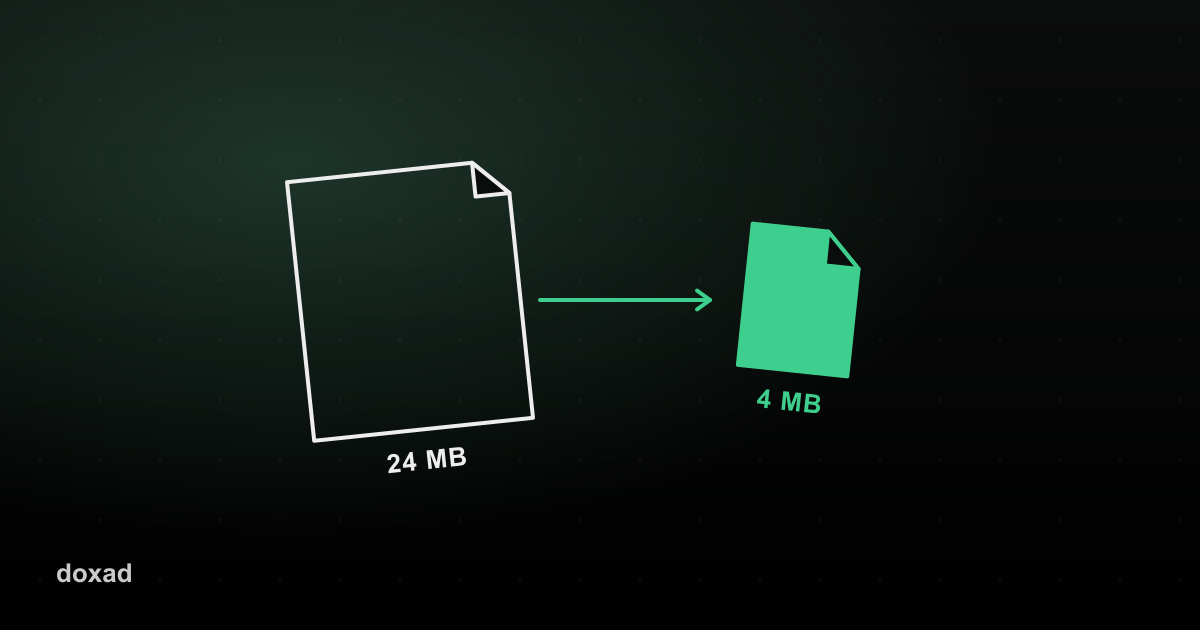
It depends on the original — photos straight from a modern phone camera often shrink by more than half with no visible difference.
Does this work on PNG screenshots too?
Yes, though PNG's lossless nature means the size reduction is usually smaller than what you'd see compressing a JPG photo.
Will this fix a PDF that's too large to email?
If the size comes from embedded images, yes — see our guide on shrinking a PDF that's too large to email for the full workflow.